
CarPlay or Android Auto Not Working: 8 Causes to Check First
Updated Nov 22, 2026
In This Guide
- How CarPlay and Android Auto Actually Connect
- The Fastest First Checks (Do These Before Anything Else)
- Quick Diagnosis Table
- Cause 1: The Cable Carries Power but Not Data
- Cause 2: The Wrong USB Port, a Dirty Port, or a Dead Port
- Cause 3: Wireless Radios, Battery Saving, or a VPN Is Blocking the Connection
- Cause 4: A Permission or Restriction Is Silently Blocking Projection
- Cause 5: A Stale Pairing After an Update or a Changed Phone
- Cause 6: Software Is Out of Date on the Phone, the App, or the Car
- Cause 7: Another Phone, Adapter, or Head-Unit Setting Is Competing
- Cause 8: The Car Doesn’t Support It — or Its Hardware Has Failed
- What It Costs to Fix
- When to Get Professional Help for CarPlay or Android Auto Not Working
- Frequently Asked Questions
With CarPlay or Android Auto not working, you plug your phone in, the battery icon shows it is charging, and then… nothing. No CarPlay on the screen. No Android Auto. No maps, no music, no hands-free messages — just your car’s own home screen staring back at you. Or worse, it connects for a few minutes and then drops in the middle of a turn you actually needed directions for.
This is one of the most frustrating car-tech problems because it looks like everything is working. The phone charges, Bluetooth may even pair, and the car seems fine. But phone projection is not the same as charging, and it is not the same as Bluetooth audio. It needs a data connection, the right permissions, and both the phone and the car agreeing to talk — and any one of those can silently fail.
The good news is that most CarPlay and Android Auto failures are fixed without a mechanic, without a new stereo, and often without spending anything. The fixes below are ordered from the most common and easiest to the deeper ones, and they cover both Apple and Android, wired and wireless. Work through them in order, test after each step, and stop as soon as it works.
Safety first: Do all of this while parked, with the engine off or the car in Park. Never swap cables, dig through phone settings, or reset connections while driving. A navigation screen is not worth a crash. If CarPlay or Android Auto drops while you are driving, pull over safely before touching anything.
In this guide, you’ll learn:
- Why your phone can charge but CarPlay or Android Auto still won’t launch
- The fastest checks to try first, before you change any settings
- The 8 causes, from a charge-only cable to a stale pairing to a car that never supported projection at all
- The exact iPhone and Android settings that silently block CarPlay and Android Auto
- When the problem is the car’s hardware — and what to ask a shop before paying for a diagnosis
How CarPlay and Android Auto Actually Connect
Understanding the connection is half the diagnosis, because the symptoms point to different causes depending on how you connect.
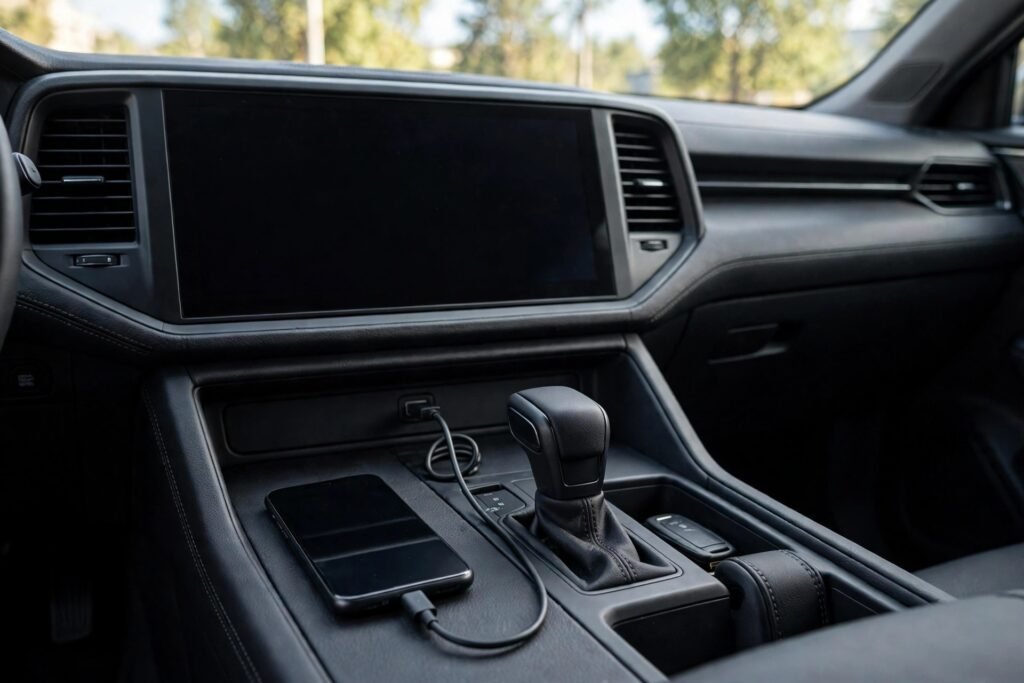
Wired connection. Your phone plugs into the car’s USB port with a cable. That cable has to carry data, not just power. The car’s head unit then runs the CarPlay or Android Auto interface on its screen, while the phone does the actual work — maps, music, messages — in the background. If the cable, the port, or the phone’s USB permission fails, you get charging with no projection.
Wireless connection. Wireless CarPlay and wireless Android Auto still start over Bluetooth, but the heavy lifting — the screen, the maps, the audio — runs over Wi-Fi. That is why wireless projection needs both Bluetooth and Wi-Fi switched on, and why it is more sensitive to interference, battery-saving settings, and VPN apps than a cable is. Not every car supports wireless projection: many cars that support wired CarPlay or Android Auto do not support the wireless version at all, and no setting on your phone can add it.
The key distinction to remember: charging only proves that power is reaching your phone. A cable can charge perfectly while failing to transfer data. Likewise, Bluetooth pairing only proves the phone and car can exchange audio and calls — it does not prove CarPlay or Android Auto is allowed, configured, or connected. When you diagnose, test projection itself, not charging or Bluetooth.
The Fastest First Checks (Do These Before Anything Else)
Before you change a single setting, run this two-minute sequence while parked. It resolves a surprising number of cases on its own:
- Restart the phone properly. Power it fully off, wait about ten seconds, and turn it back on. A restart clears stuck USB and wireless handshakes that a simple screen lock does not.
- Restart the car fully. Turn the car off, open the driver door, wait about thirty seconds, then start it again. On many cars this fully powers down the infotainment system; just turning the ignition off and straight back on may only put it to sleep.
- Try a different cable — a short, certified one. Use a cable you know carries data, ideally a short one around 3 feet (1 metre) long, from the phone maker or a certified brand. Long, cheap, or damaged cables are the single most common cause of wired failures.
- Try a different USB port in the car. Many cars have only one USB port that supports data and projection; the others are charging-only. Your owner’s manual or the small icons beside the ports usually say which is which.
- Check the obvious on the screen. Look for the CarPlay or Android Auto icon on the car’s home screen, and make sure the car is not sitting on a different audio source. Sometimes projection is connected and simply not selected.
If none of that works, the problem is in one of the eight causes below. Use the table to jump to the one that matches your symptom.
Quick Diagnosis Table
| Symptom | Most likely cause | First check |
|---|---|---|
| Phone charges but CarPlay/Android Auto never launches | Charge-only or damaged cable, or wrong USB port | Swap in a short certified data cable; try another port |
| Worked before, stopped after a phone update | Stale pairing or software mismatch | Forget the car and re-pair; update phone and head-unit software |
| Connects, then drops every few minutes | Failing cable, loose port, or wireless interference | New cable; move phone closer to the head unit; check battery-saver settings |
| Wireless won’t connect but wired works | Bluetooth/Wi-Fi off, VPN, or battery optimization | Both radios on; VPN off; Android Auto set to Unrestricted |
| Bluetooth pairs but projection never starts | Permissions or restrictions blocking projection | CarPlay allowed/Siri on (iPhone); Android Auto permissions (Android) |
| Worked in another car but not this one | Car-side setting, port, or compatibility | Head-unit projection setting; try a second phone in this car |
| No phone at all works in this car | Car hardware fault or unsupported car | Check compatibility and manual; USB hub or head-unit diagnosis |
| Screen goes black when projection starts | Software glitch or head-unit fault | Update everything; restart both; head-unit firmware check |
Cause 1: The Cable Carries Power but Not Data
This is the first thing to rule out for any wired failure, and it fools people precisely because the phone charges. USB cables are not all the same inside: some are built only to charge, with no data wires at all, and others develop broken data connections while the power wires still work. A cable that charged your phone happily for a year can also stop carrying CarPlay or Android Auto data after wear, bending, or an update that makes the connection fussier about signal quality.
The fix: Borrow or buy a short, certified cable and test with that before anything else. For iPhone, that means an Apple-certified (MFi) cable; for Android, a USB-IF certified cable. Keep it short — around 3 feet is the sweet spot in most troubleshooting guides, because longer cables degrade the data signal. Avoid USB hubs, splitters, and extension adapters for testing: plug the phone directly into the car’s port. If the new cable works, the old cable was the problem, and you are done. Keep the good cable in the car and retire the old one rather than keeping it as a spare — it will fail again.
One more cable trap: a cable that worked in another car or with another device is not proof it is good. Different head units are more or less tolerant of a marginal cable, so always test the cable in the car that is actually failing.
Cause 2: The Wrong USB Port, a Dirty Port, or a Dead Port
If the cable is good and projection still won’t start, the port is the next suspect — and there are three different port problems that look identical from the driver’s seat.
The wrong port. As noted above, many cars have several USB ports but only one that supports data and projection. The rest charge the phone and do nothing else. This is by design, not a fault. Try every USB port in the car, one at a time, waiting a few seconds after each plug-in. If one port works and the others don’t, you have found your projection port — mark it mentally and use it from now on.
A dirty or loose port. Lint, dust, and pocket debris compact inside the phone’s charging port over time and stop the plug from seating fully. The result looks like a random connection failure: it works if you hold the cable at an angle and drops when you let go. With the phone powered off, inspect the port in good light. If you can see lint, remove it gently with a wooden or plastic pick — never a metal object, and never force anything. The same applies to the car’s port: check for visible debris or damage, and if the car’s port feels loose or wobbly, that is a hardware problem, not a settings problem.
A completely dead port. If the port charges nothing and connects nothing, and other accessories on the same circuit are dead too, a blown fuse is a real possibility. That is a separate, simple check — see our guide to a car fuse keeps blowing before assuming the head unit has failed. If the port has power but no phone will project through it, skip ahead to Cause 8: the fault is likely in the car’s USB hub or head unit.
Cause 3: Wireless Radios, Battery Saving, or a VPN Is Blocking the Connection
Wireless CarPlay and Android Auto are convenient, but they have more moving parts than a cable — and more ways to fail quietly.
Both radios must be on — properly on. Wireless projection needs Bluetooth and Wi-Fi enabled on the phone. On iPhone, check this in Settings, not just Control Center, and for wireless CarPlay make sure the car’s network is set to join automatically. On Android, wireless Android Auto also needs Location services on for the initial setup on many phones, and the phone generally needs to support 5 GHz Wi-Fi. If either radio is off, or if the phone is in airplane mode, wireless projection cannot start at all.
Battery saver is a silent killer for Android Auto. Android’s battery optimization can restrict Android Auto in the background, which shows up as failure to connect, laggy maps, or drops. In your phone’s battery settings, set Android Auto (and Google Maps, if you use it for navigation) to Unrestricted battery usage, and check that data saver is not throttling it either. This is one of the most commonly missed Android fixes because nothing on the screen tells you the app is being restricted.
VPNs can block wireless projection. Some VPN apps interfere with the local Wi-Fi connection wireless Android Auto relies on. If wireless projection fails and everything else checks out, turn the VPN off temporarily and test again. If it works with the VPN off, you have found your culprit — you can then look for a split-tunneling or exception setting in the VPN app, or simply leave the VPN off while driving.
Distance and interference matter too. Keep the phone reasonably close to the head unit, and disconnect other Bluetooth devices that might be competing for the connection. If wireless keeps dropping but wired is rock solid, that pattern itself is diagnostic: the problem is the wireless link, not the phone or the car as a whole. And if Bluetooth itself will not pair at all — not just projection — start with our guide to Bluetooth not connecting first, since wireless projection cannot even begin without that handshake.
Cause 4: A Permission or Restriction Is Silently Blocking Projection
This is the cause that makes people replace cables for hours when the real problem is a toggle buried in settings. CarPlay and Android Auto both need explicit permission, and both can be blocked without any warning on the car’s screen.
On iPhone (CarPlay):
- Siri must be enabled. CarPlay relies on Siri for voice control, and if Siri is off, CarPlay may refuse to start. Check Settings > Siri and make sure it is switched on.
- CarPlay must be allowed. Go to Settings > General > CarPlay and confirm your car is listed and enabled. Also check Settings > General > CarPlay > [your car] and make sure “Allow CarPlay While Locked” is on — if it is off, CarPlay may fail whenever the phone locks.
- Screen Time restrictions can block CarPlay outright. Go to Settings > Screen Time > Content & Privacy Restrictions > Allowed Apps and make sure CarPlay is allowed. This is a classic trap after setting up parental controls or after an update: everything else on the phone works fine, but CarPlay is silently forbidden.
- USB accessories when locked. If your phone has been locked for a while, iOS can restrict USB data accessories. If wired CarPlay only fails when the phone has been locked for some time, check the USB Accessories setting under Face ID & Passcode and make sure it is allowed — just be aware this setting exists for security reasons, so understand the trade-off before changing it permanently.
On Android (Android Auto):
- App permissions must be complete. Go to Settings > Apps > Android Auto > Permissions and make sure location, phone, microphone, and notifications are all granted. Android Auto without its permissions will often fail silently rather than explain what is missing.
- USB mode must be data, not charging only. When you plug in, Android may show a USB notification. The mode needs to be File Transfer (MTP) or PTP — if it is set to “Charging only,” no data flows and Android Auto cannot start. Tap the notification and change it if needed.
- Android Auto must be set to start. In Settings, search for Android Auto and make sure it is set to start automatically, and to start while the phone is locked, if those options are offered on your phone. A phone that only allows Android Auto when unlocked will look broken every time the screen sleeps.
Work through the list for your platform only — iPhone settings do not affect Android Auto and vice versa — and test after each change so you know which toggle was the one.
Cause 5: A Stale Pairing After an Update or a Changed Phone
If CarPlay or Android Auto worked fine and then stopped — especially right after a phone update, a new phone, or a car battery change — a stale pairing is the prime suspect. The phone and the car each remember the other, and when one side updates its software, the remembered handshake can stop matching. Both sides then insist the connection is fine while nothing actually connects.
On iPhone: Go to Settings > General > CarPlay, tap your car, and choose Forget This Car. Then plug in (or pair wirelessly) and set it up fresh, accepting any prompts on both the phone and the car’s screen. This is the single most effective fix for “it broke after an update” CarPlay problems, and it costs nothing.
On Android: For wired problems, clear the Android Auto app’s cache first (Settings > Apps > Android Auto > Storage > Clear Cache) — this removes temporary data without deleting your settings. If that does not work, clear storage as well, which resets Android Auto to a fresh setup you will need to walk through again. For wireless problems, also forget the car’s Bluetooth and Wi-Fi connections on the phone, forget the phone on the car’s system, and pair from scratch. Re-pairing from both sides, rather than just one, matters: a half-forgotten pairing is a common reason the first re-pair attempt fails.
A note on resetting network settings: Some guides suggest resetting the phone’s network settings as a deeper fix for stubborn wireless failures. It can work, but know what it does first: it erases saved Wi-Fi networks, Bluetooth pairings, and VPN settings (not your photos or apps). Treat it as a later step, not a first step, and only after you have tried forgetting the car and re-pairing.
Cause 6: Software Is Out of Date on the Phone, the App, or the Car
Projection is a handshake between two computers — your phone and your car’s head unit — and when one side is far behind the other, the handshake fails. Updates are not just about new features here; they fix connection bugs.
Update the phone. On iPhone, check Settings > General > Software Update. On Android, check Settings > System > Software Update, and separately update the Android Auto app itself in the Google Play Store (on Android 10 and later Android Auto is built in, but it still updates like an app). Also update the individual apps you use through projection — Maps, music, messaging — since a crashing app can look like a projection failure.
Update the car. This is the step most people miss. Car manufacturers release infotainment firmware updates that fix CarPlay and Android Auto compatibility, sometimes years after the car was sold. Check your carmaker’s owner portal or support site for head-unit updates, or ask at your next service — some updates install over USB or Wi-Fi at home, while others need a dealer visit. If projection broke right after a phone update and nothing on the phone side fixes it, a missing head-unit update is the most likely explanation, because the phone changed the handshake and the car has not caught up yet.
A useful test for update problems: if wireless fails but wired works (or vice versa) after an update, that split is informative. It usually means the connection method itself is affected, not the phone or the car as a whole, and it points you back to the settings and pairing steps for that specific mode.
Cause 7: Another Phone, Adapter, or Head-Unit Setting Is Competing
Sometimes the problem is not a fault at all — it is a conflict between two things trying to use the same connection.
A second paired phone. If your partner’s phone is also paired or plugged in, the car may connect to that phone, switch sources unexpectedly, or refuse your phone entirely. For testing, unplug the other phone and turn off its Bluetooth and Wi-Fi, then try yours alone. If yours works with the other phone out of the picture, you have a priority conflict, not a fault — set your phone as the priority device in the car’s settings if the car offers that option.
Wireless adapters and hubs. Aftermarket wireless adapters plug into the car’s wired USB port and add wireless projection to a car that only supports wired. They can work well, but they add their own pairing, firmware, and power requirements — and they cannot fix a broken wired connection, because they depend on that same wired port working. If you use one and projection fails, test without it first: plug the phone directly into the car. If direct wired works, the adapter (or its setup) is the problem, not the car or the phone. The same applies to USB hubs and splitters: remove them for testing.
Projection switched off in the car. Many head units have their own CarPlay or Android Auto toggle buried in their settings menus, separate from anything on the phone. Check the car’s infotainment settings for Apple CarPlay or Android Auto and make sure it is enabled for the port or connection you are using. This is especially worth checking in a newly bought used car, where a previous owner may have turned it off, or after a head-unit reset.
Cause 8: The Car Doesn’t Support It — or Its Hardware Has Failed
If you have worked through Causes 1–7 and nothing helps, it is time to ask whether the car side is capable at all — and the fastest way to find out costs nothing.
Check compatibility first. Not every car supports CarPlay or Android Auto, and support varies by model year and trim — some cars support one but not the other, and many support wired only. Check your owner’s manual, the carmaker’s website, or Apple’s and Google’s compatibility lists for your exact model year and trim. If your car was never equipped with projection, no cable or setting will add it; the realistic options are an aftermarket head unit or a phone mount, and that is a purchase decision, not a repair.
The two-phone test. Borrow a second phone — ideally a different brand or model — and try it in your car with a known-good cable. Then try your phone in a different car that supports projection. The results tell you where the fault lives:
- Your phone fails everywhere, other phones work in your car: the fault is with your phone — its port, cable, settings, or software.
- No phone works in your car, your phone works elsewhere: the fault is car-side — the USB port, the USB hub behind the dash, or the head unit itself.
- Nothing works anywhere: re-check the cable and the basics before concluding anything, because a bad cable can poison both tests.
When it is genuinely hardware. A loose or damaged USB port, a failed USB hub, or a head unit that crashes, reboots, or goes black is a shop job — these are not settings you can fix from the driver’s seat. If the whole head unit is dead, black, or rebooting on its own, that is a different fault from a projection failure: see our guide to a car radio not working for how to separate a dead unit from a connection problem. Before authorizing any head-unit replacement, ask the shop to confirm the diagnosis with a second phone and a known-good cable, and to quote the diagnosis separately from the repair — head units are expensive, and you do not want to pay for one to fix what was actually a port or a cable.
What It Costs to Fix
Most CarPlay and Android Auto fixes cost nothing: restarting, swapping a cable you already own, changing a setting, forgetting and re-pairing, and updating software are all free. The only routine purchase is a replacement cable, and a certified cable is a small expense compared with any shop visit. A wireless adapter is a mid-range optional purchase, not a repair — only consider one once wired projection is proven working, since adapters depend on the wired port.
Professional costs vary too much to quote fairly here, and they depend on what is actually wrong: a USB port or hub repair, a head-unit firmware update at a dealer, and a full head-unit replacement are very different jobs. If a shop is involved, ask for the diagnosis in writing, ask what was tested (second phone? known-good cable?), and get the repair quote before authorizing work. Never authorize a head-unit replacement on the basis of “CarPlay doesn’t work” alone — that symptom alone does not prove the head unit has failed.
When to Get Professional Help for CarPlay or Android Auto Not Working
Stop DIY troubleshooting and book a diagnosis if any of these apply:
- No phone works in your car after the two-phone test, pointing to a car-side hardware fault.
- The USB port is visibly damaged, loose, or pushed into the dash.
- The head unit crashes, reboots, or goes black on its own, with or without a phone connected.
- The car is under warranty — let the dealer handle infotainment faults rather than risking a warranty argument with aftermarket parts.
- You have tried every cause above, in order, and projection still fails on a car that definitely supports it.
When you go in, bring the facts a technician actually needs: your phone model and software version, whether wired, wireless, or both fail, whether a second phone was tested, and whether the failure started after an update. That combination cuts through the generic troubleshooting script and gets you to a real answer faster.
Frequently Asked Questions
Why does my phone charge but CarPlay won’t launch?
Because charging and data are different things. A charge-only cable, a charging-only USB port, or a damaged data connection can all deliver power while carrying no data. Swap in a short certified data cable and try a different USB port first — that resolves this exact symptom more often than any settings change.
Why did CarPlay stop working after I updated my phone?
Updates can change the connection handshake and expose a stale pairing or an out-of-date head-unit firmware. Forget the car on the phone and set it up fresh, update the phone fully, and check for a head-unit firmware update from your carmaker. If wireless broke but wired still works (or the reverse), focus on that mode’s settings and pairing.
Why does Android Auto keep disconnecting?
Start with the cable: a worn or low-quality cable is the most common cause of repeated drops. Then check battery optimization (set Android Auto to Unrestricted), turn off any VPN temporarily, and keep the phone close to the head unit for wireless. If drops only happen on wireless, the wireless link — not the phone or the car — is the suspect.
Do I need Wi-Fi on for wireless CarPlay or Android Auto?
Yes. Wireless projection starts over Bluetooth but runs over Wi-Fi, so both radios need to be on. Bluetooth alone only gives you calls and audio, not the full projection screen. This is also why a VPN or an aggressive battery saver can break wireless projection while leaving Bluetooth audio untouched.
Will a wireless adapter fix my broken CarPlay?
Only if wired CarPlay already works. Wireless adapters plug into the car’s wired USB port and convert it to wireless — they depend on that port and on the car’s wired support working. If wired projection fails, fix that first; an adapter will not repair a faulty port, cable, or head unit.
My car doesn’t have CarPlay at all. Can I add it?
If your car was never equipped with CarPlay or Android Auto, the realistic route is an aftermarket head unit that supports it, fitted by a stereo shop. Check compatibility for your exact model year and trim first, and be aware that on cars where climate controls or safety systems run through the factory screen, replacement may be limited — get a shop’s advice for your specific car before buying anything.

lily John
The Fixtorial team writes hands-on car troubleshooting guides for everyday drivers — symptom first, honest costs, and fixes you can verify yourself.


2 Comments